
Mode Help
Integrations
OverviewLocal File Uploads
RequirementsCreating a Local File DatasetEditing your Local File DatasetDescribing the fields in your DatasetAdding calculated fields to your Local File DatasetUpdating your Dataset's name & descriptionScheduling a Local File DatasetMoving a Local File Dataset to a CollectionViewing a Local File DatasetUsing your Local File Dataset in a ReportRefreshing data in a Dataset-based ReportLocal File Dataset permissionsFAQs
Local File Uploads
Overview
Mode’s local file integration allows users to upload data directly from their computers into Mode Datasets. This is the fastest way to perform ad-hoc analysis on .csv, .tsv, and .xlsx files without requiring a cloud-based connection.
Requirements
Before you get started, ensure your file meets the following criteria:
- Supported Formats: .csv, .tsv, and .xlsx.
- File Size: Files must be under 250MB.
Tips when preparing your local data for use in Mode
- Clean your data: Remove any empty rows or columns at the end of your file to ensure a clean import.
- Date Formats: Ensure date columns follow a consistent format (e.g., YYYY-MM-DD) for accurate auto-detection.
- Encoding: For .csv and .tsv files, use UTF-8 encoding to avoid character display issues.
Creating a Local File Dataset
To create a new Dataset, select the Create button in the top right corner of your Mode home screen and choose the Upload external data option, then select Local file.
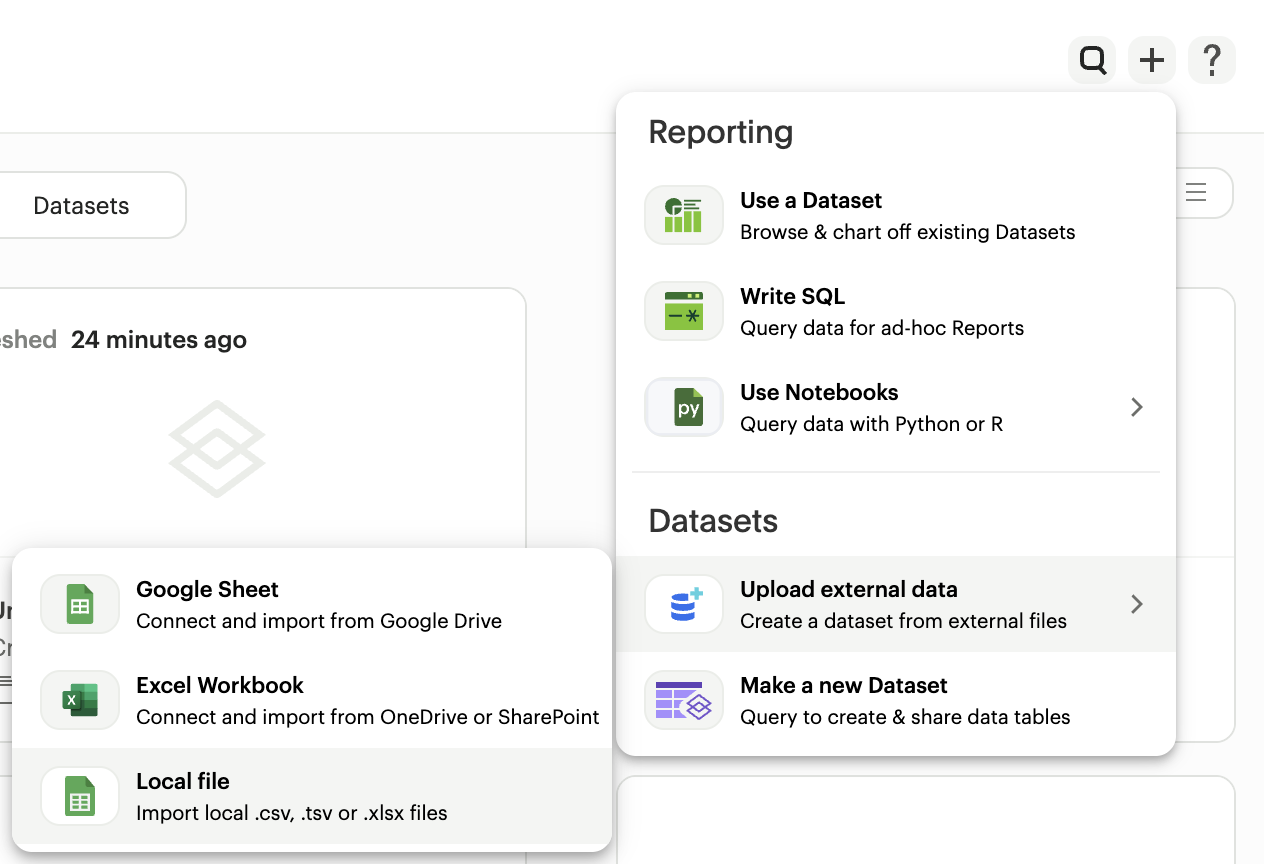
Step 1: Upload an Header Declaration
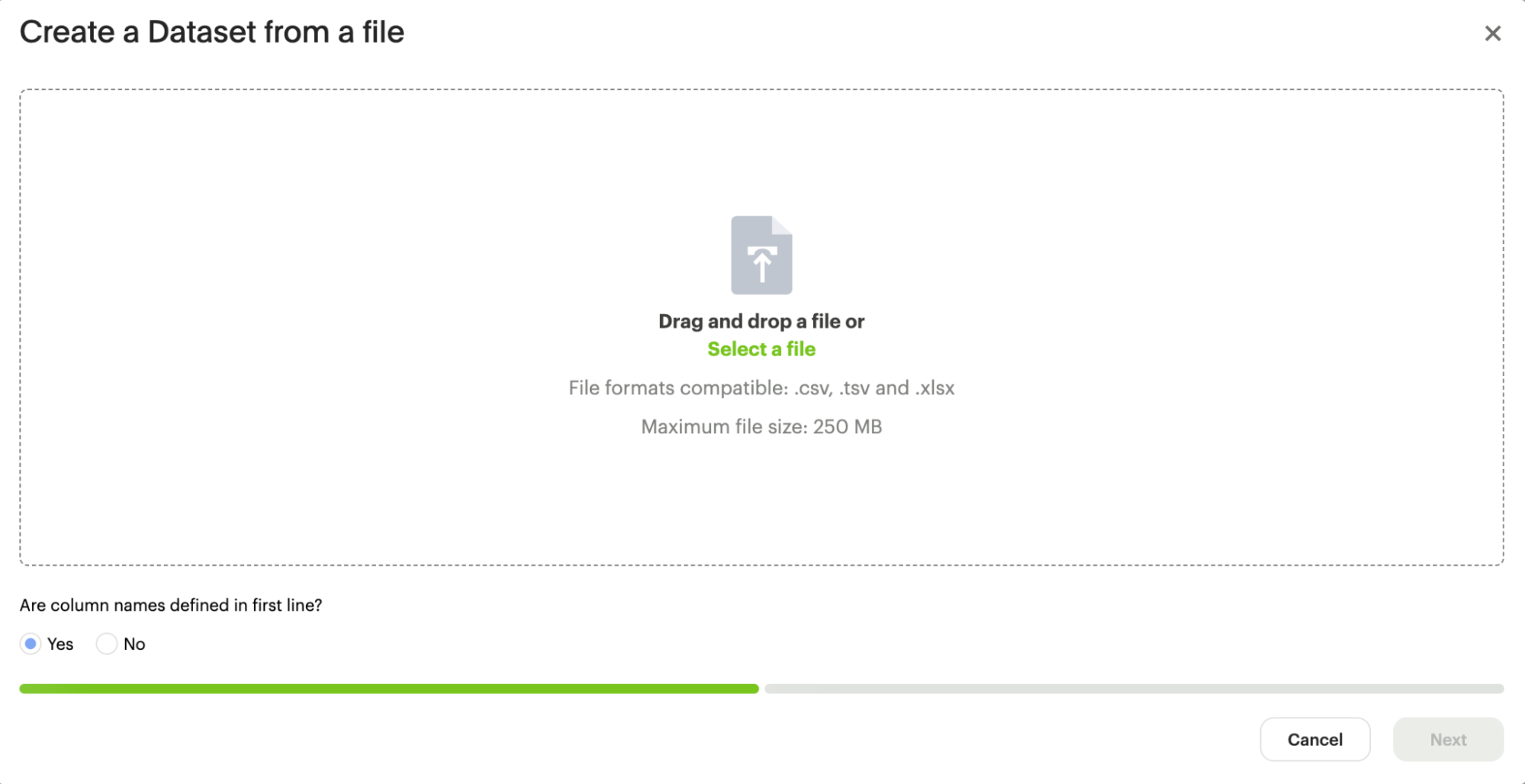
Once you select a file, you will be prompted to declare if column names are defined in the first line of your file:
- Yes: Select this if your first row contains column headers.
- No: Select this if your file starts directly with data. Mode will automatically identify data types from the first row and generate generic column headers (e.g., "Column 1").
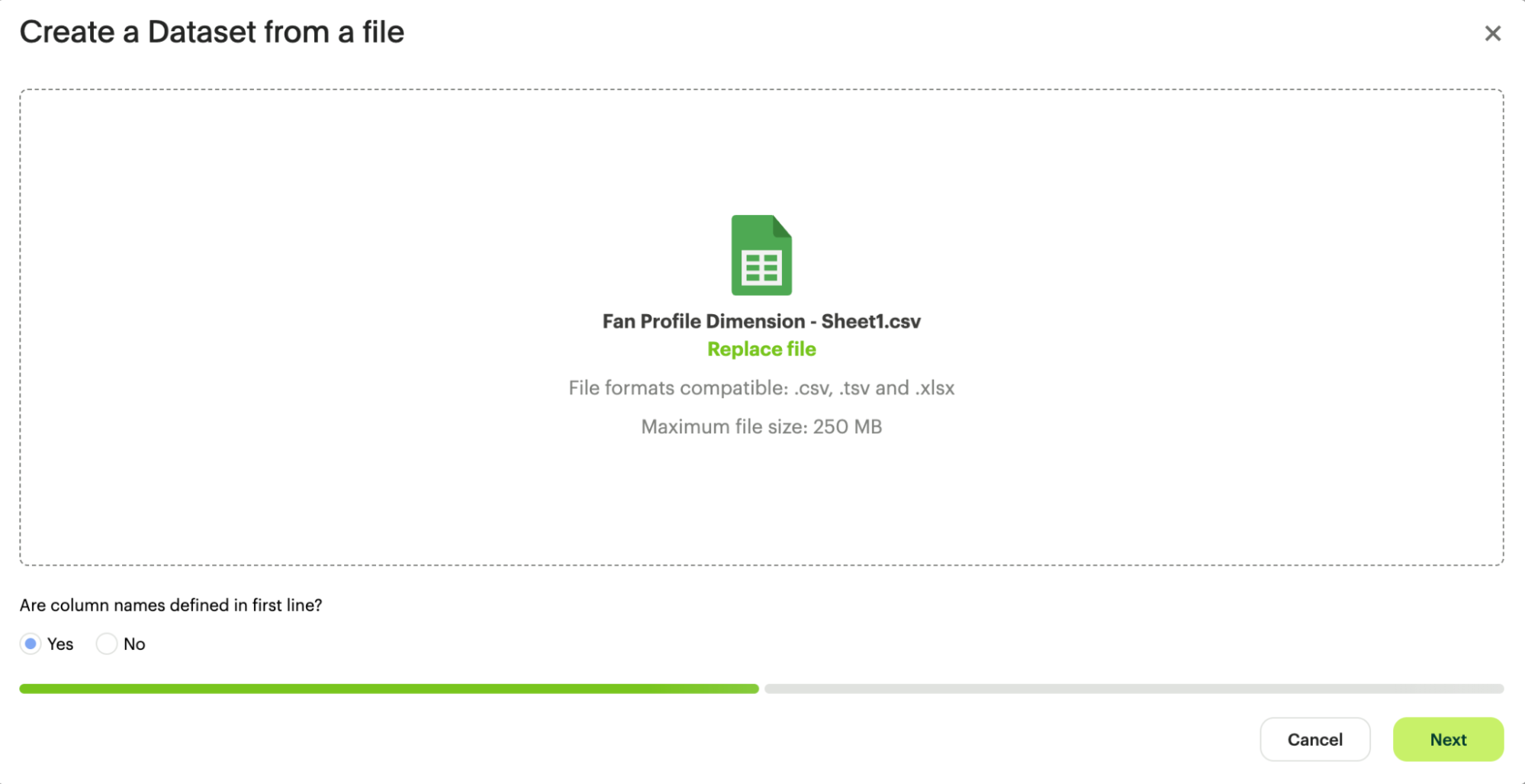
Step 2: Reviewing and Refining Columns
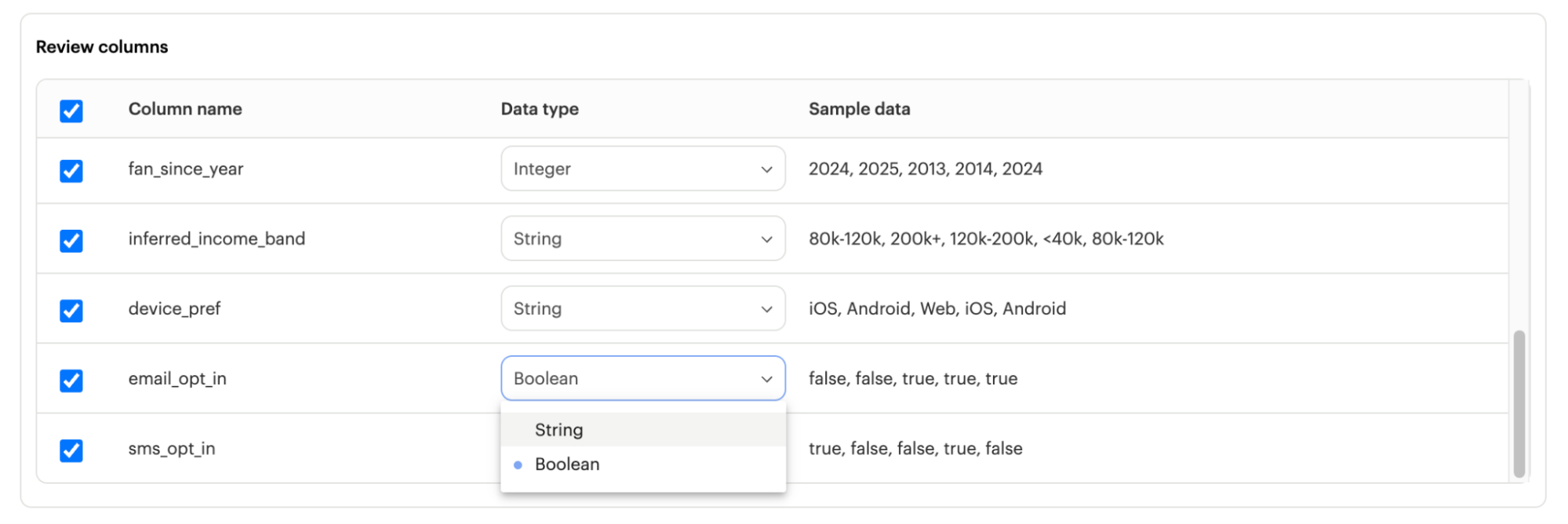
After the file is processed, a configuration modal allows you to verify the data before the Dataset is officially created:
- Dataset Details: Provide a Dataset name and Dataset description to help identify your data in Collection views.
- Data Preview: View the Sample data (first five rows) of your file.
- Column Selection: Uncheck the box next to any Column name you do not wish to include in your Dataset.
- Data Type Assignment: Mode automatically parses and assigns types such as String, Number, or Date.
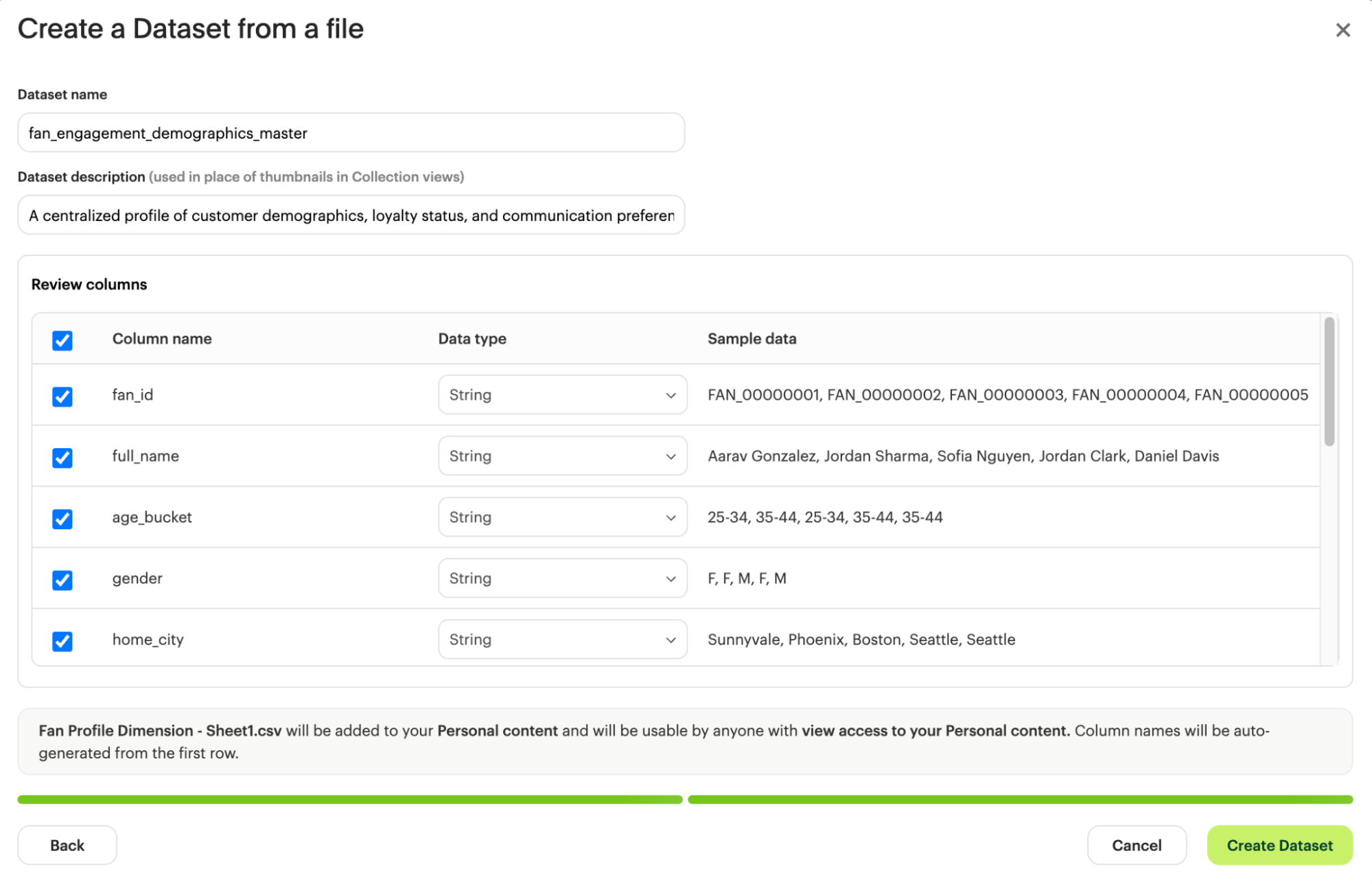
Step 3: Modifying Data Types and Typecasting
You can override auto-detected data types using the dropdown menu in the review modal. Changes must follow valid typecasting logic:
| Source Type | Can be cast to... |
|---|---|
| Boolean | String |
| Integer | Number, String |
| Number | Integer, String |
| Date | Datetime, String |
| Dateime | Date, Time, String |
| Time | String |
| String | Boolean, Integer, Number, Date, Datetime, Time |
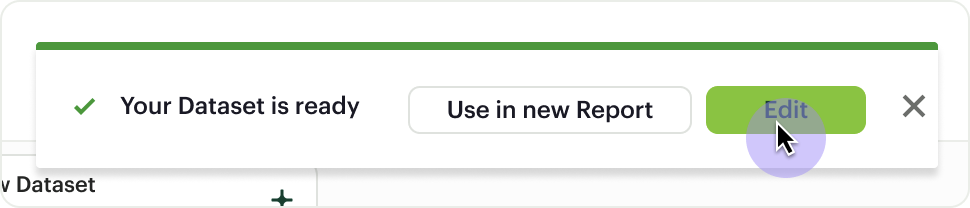
After your local file has been successfully uploaded and your Dataset has been created, you'll receive a notification that it's ready for use. From here, you can choose to edit the Dataset directly or start visually analyzing its data in a new Report.
Editing your Local File Dataset
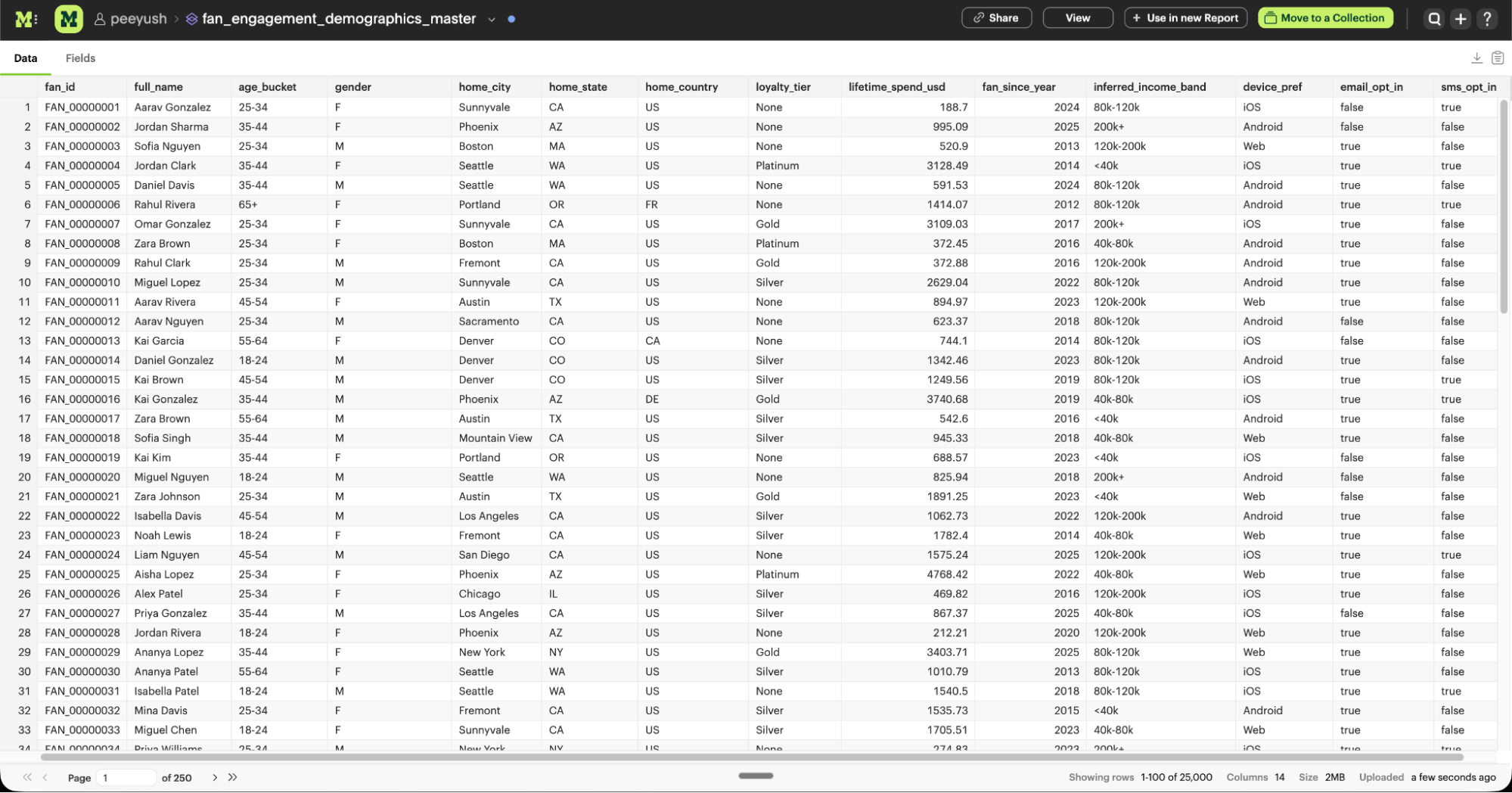
Once your file data is uploaded, you'll be able to see the results in the Data View. This shows the columns generated from the file. You can also see a list of all available fields from the Fields tab.
Describing the fields in your Dataset
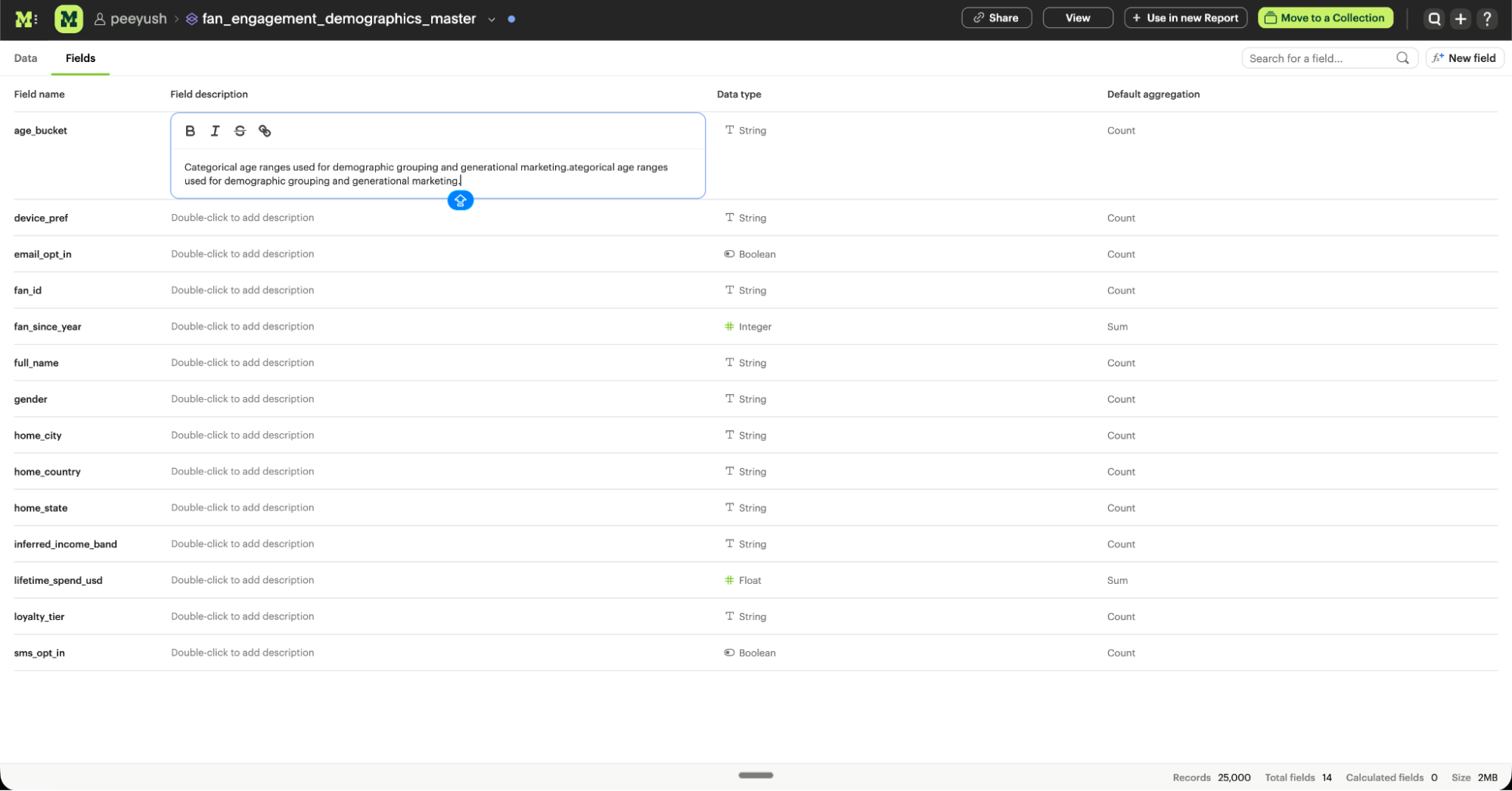
We recommend adding field descriptions to build shared understanding around business logic. To add a description, edit the Dataset, navigate to the Fields tab, and double-click the row. Descriptions support up to 350 characters and basic text formatting.
Adding calculated fields to your Local File Dataset
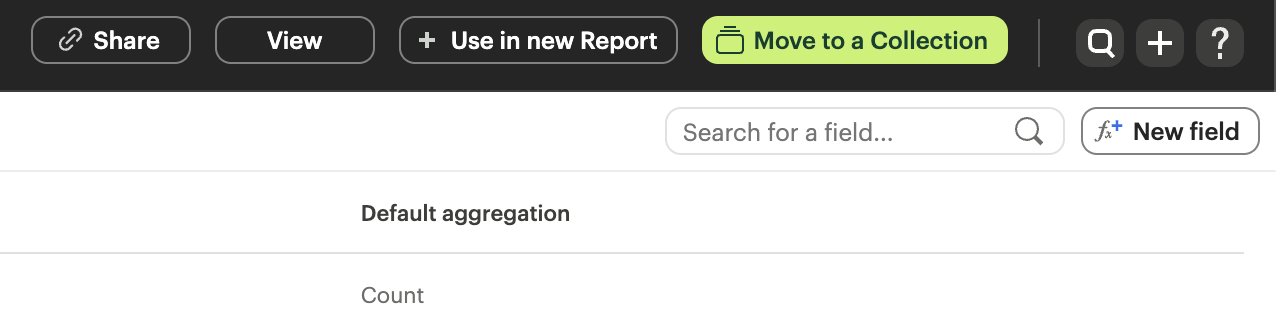
You can enhance your local data by adding formulas directly in Mode. Select New Field in the Dataset view to create new logic without modifying your original source file.
Updating your Dataset's name & description
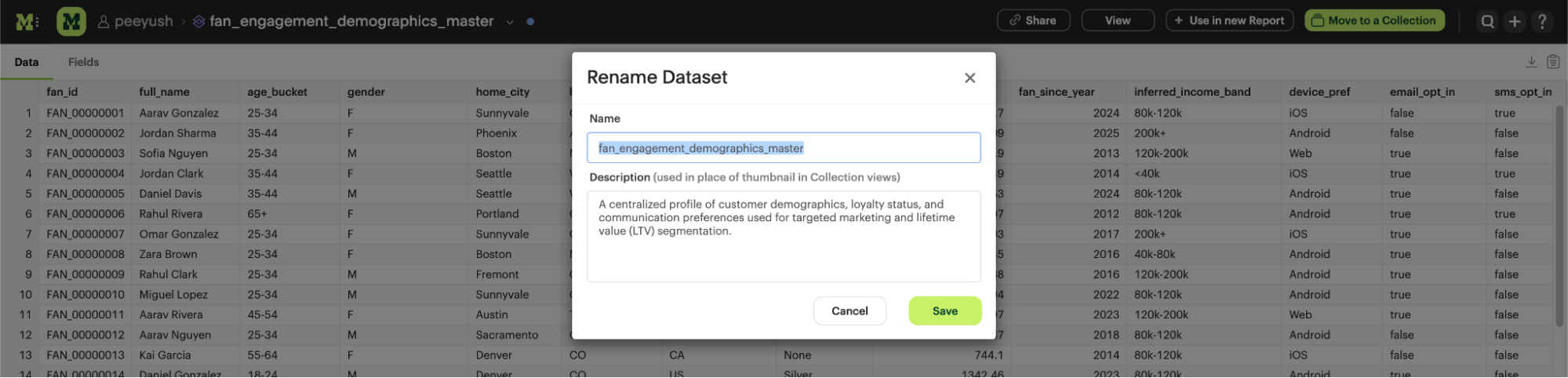
You can change the Dataset name or description at any time by clicking the name in the header area of the Dataset view.
Scheduling a Local File Dataset
Moving a Local File Dataset to a Collection
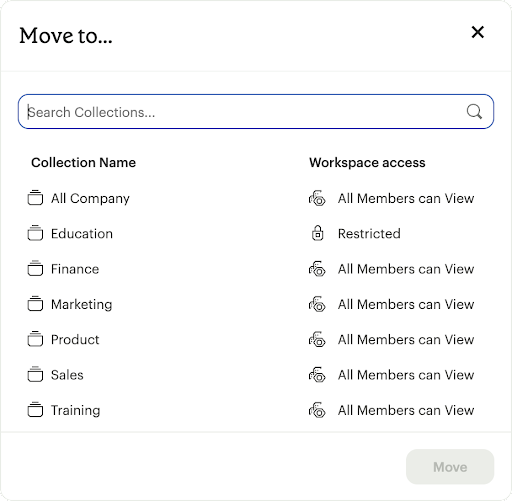
By default, new Datasets are saved to your Personal content. To share your analysis with others, click Move to Collection and select the appropriate team folder.
Viewing a Local File Dataset
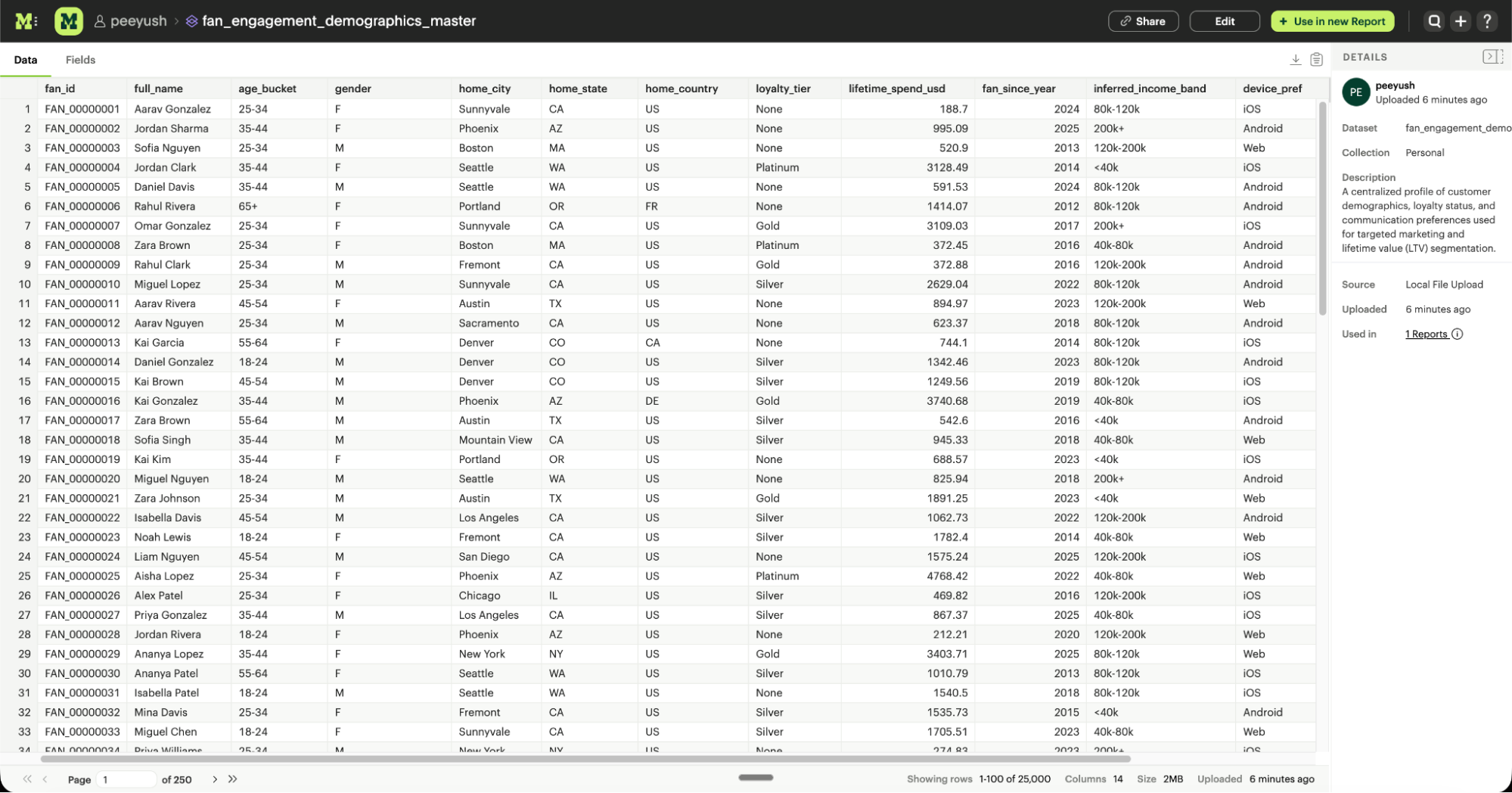
You can view your Dataset at any time from the Datasets tab in your workspace.
Using your Local File Dataset in a Report
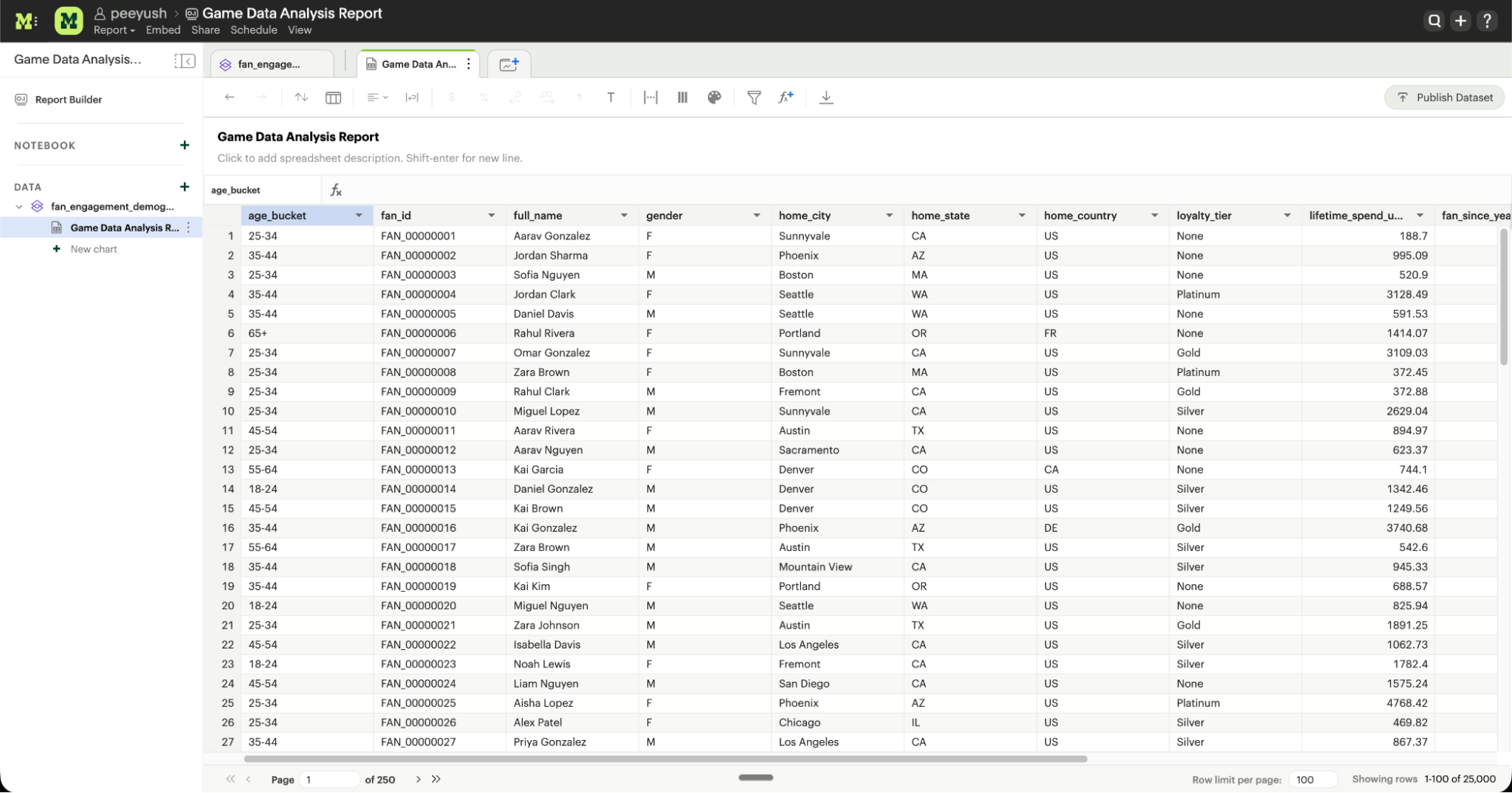
Once the upload is complete, click Start Analysis to immediately open the Spreadsheet mode or chart builder and begin visualizing your data in a new Report.
Refreshing data in a Dataset-based Report
To update a Report built on a local file, navigate to the Dataset source, select Refresh Data, and upload the new version of your file.
Local File Dataset permissions
Access to the Dataset is determined by its storage location:
- Personal Content: Only you can view or edit Datasets in your private workspace.
- Collection: If moved to a Collection, access is governed by the Collection's permission settings (Viewer, Editor, or Manager).
FAQs
Q: Can I change a .csv file to a .xlsx file during a refresh?
Yes, as long as the internal data structure and column headers match exactly.
Q: What happens if my file has merged cells?
Merged cells can cause data alignment issues. We recommend unmerging cells and filling them with values before uploading.
Q: Is there a limit to how many local files I can upload?
There is no limit on the number of files, but your total Workspace storage limit still applies.
Was this article helpful?