
Mode Help
Query and analyze data
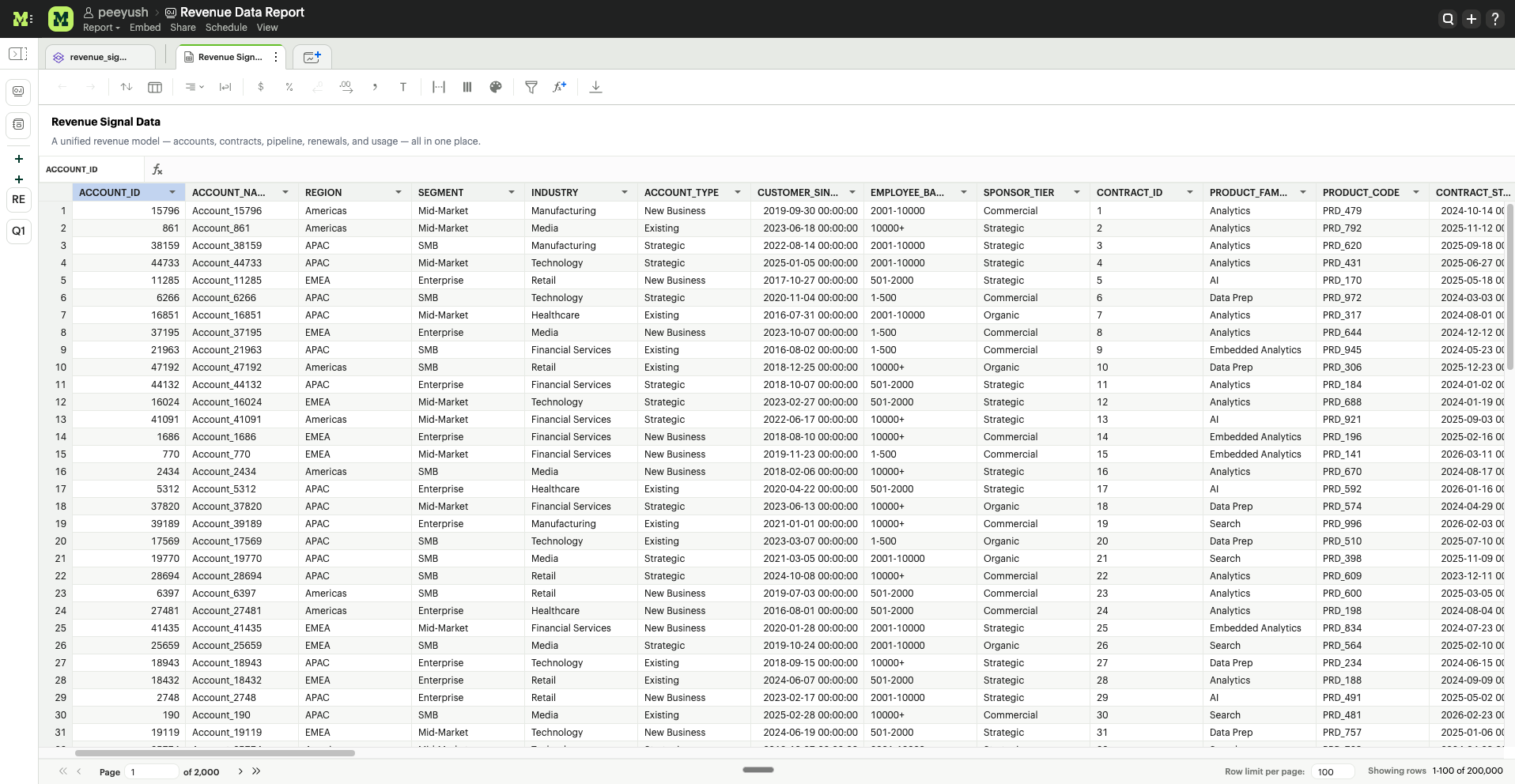
Native Spreadsheet
Overview
Spreadsheet in Mode provides a native, governed environment for high-stakes data transformation. Designed for Financial and Data Analysts, this capability enables them to build advanced datasets directly on top of governed warehouse data without the security risks of exporting to external tools. By merging the intuitive flexibility of a spreadsheet with enterprise-grade governance, users can scale basic datasets into sophisticated financial snapshots, encoding complex business logic that remains persistent and reusable.
Accessing Spreadsheet (Entry Points)
The Spreadsheet interface is deeply integrated into the Mode reporting layer, allowing you to begin transformation from any data source.
- Flat File Ingestion: Upload a .csv, .tsv, or .xlsx file and land directly in the Spreadsheet view to profile and clean your data immediately.
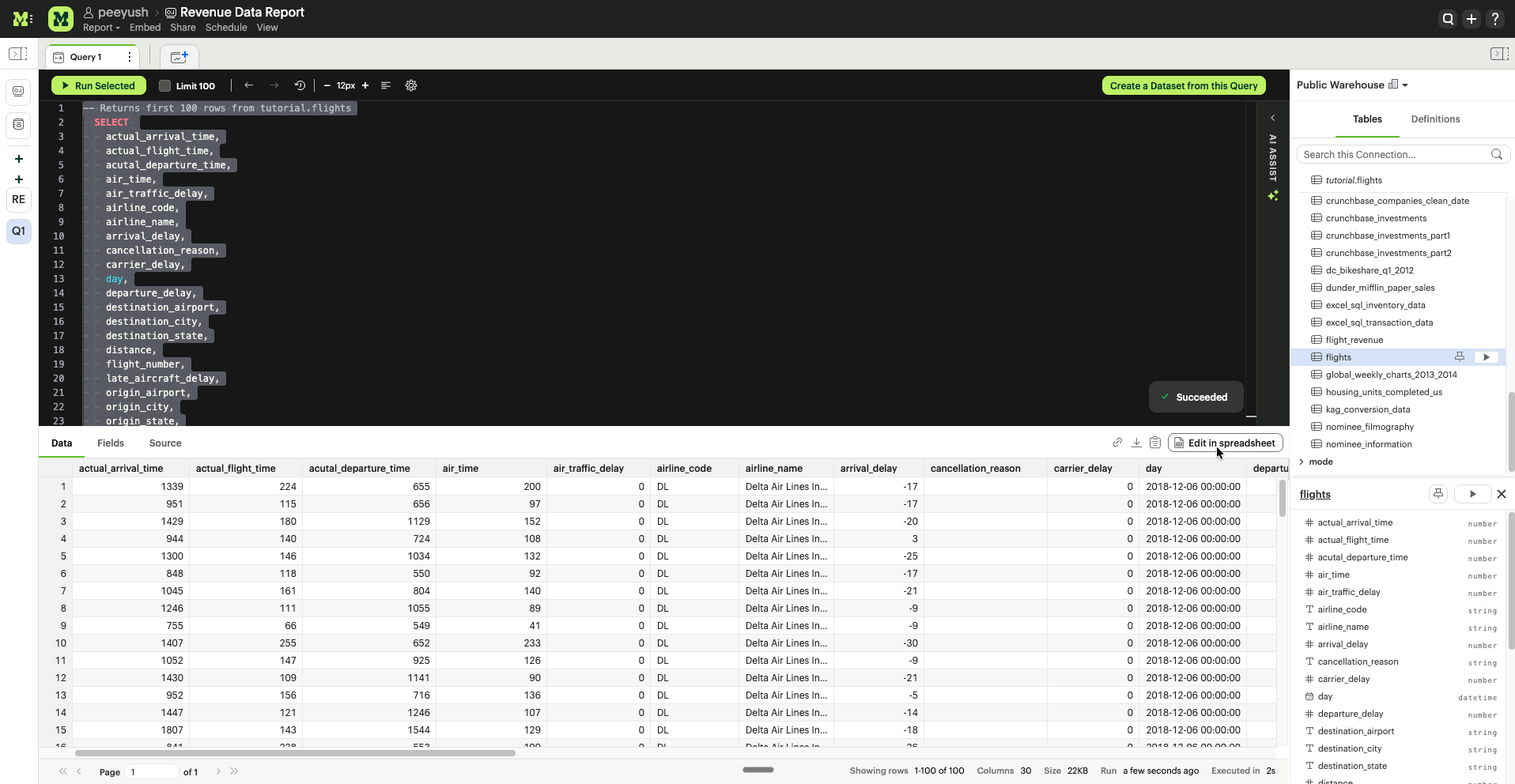
- Warehouse Connected Data (SQL/Python): From any successful query result in the SQL Editor or Python Notebook, click the Edit in spreadsheet button to perform post-processing.
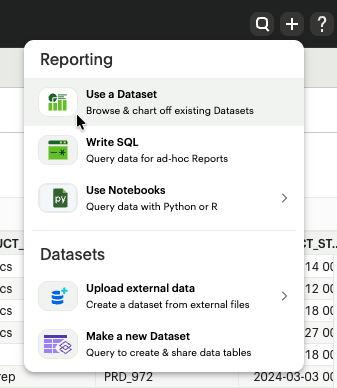
- Existing Datasets: Open any published or reusable dataset in Mode to add a new spreadsheet layer for metric enrichment.
Using the Spreadsheet
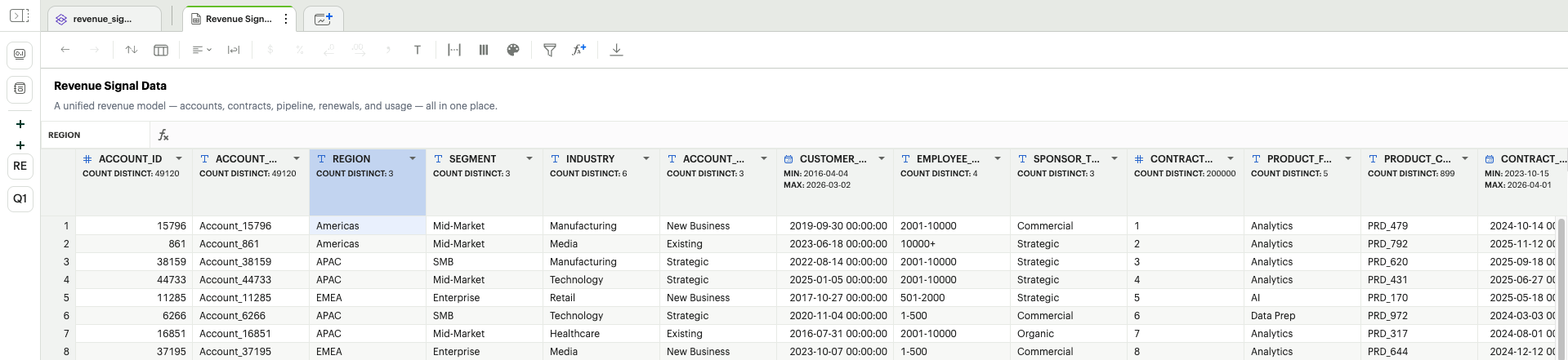
The interface is optimized to maximize grid space while keeping advanced L1 and L2 actions accessible.
Advanced Formatting & Visual Styling
The spreadsheet toolbar provides precise control over how data is presented, ensuring that metrics are not just accurate, but audit-ready.

A. Data Integrity Controls
- Undo: The Undo function allows you to revert your last action. Mode supports a multi-level undo history, meaning you can step back through a series of changes sequentially.
- Redo: The Redo function restores an action that was previously undone. This is particularly useful during "What-If" analysis when comparing two different states of a data.
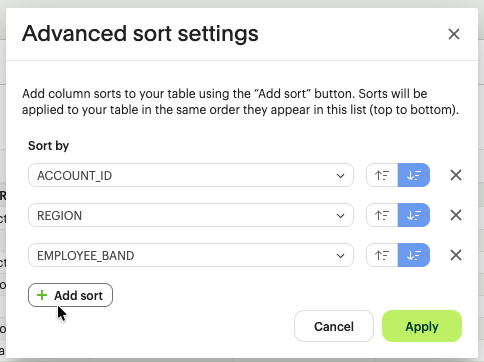
B. Column Sorting
- Global Sort: Click the Sorting icon to open the advanced sort manager. You can add multiple levels (e.g., Sort by [Region] Ascending, then by [Spend] Descending). All sorts applied in the table can also be cleared using the Clear sorts option in the toolbar.
- Interactive Header Sort: Click any column header to toggle between Ascending and Descending.
- Visual Cues: A numerical indicator appears in the header (e.g., a small "1" or "2") to show the hierarchy of your multi-column sort.
C. Conditional Formatting
This allows analysts to visually highlight outliers, risks, or performance wins based on values. Users have the ability to assign colors of different intensities to values, depending on their relative position within a specified range. The user can access the color conditional formatting option through the toolbar.
- Logic-Based Styling: Apply color scales (e.g., Green-to-Red) or single-color highlights based on cell values or text (e.g., "Highlight red if Variance > 20%").
- User Value: This enables an Analyst to open a spreadsheet and instantly identify Priority Action items without reading every row.
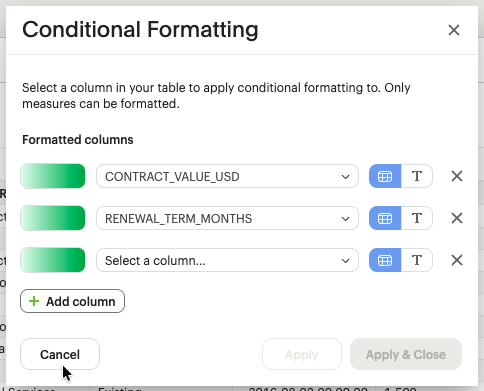
D. Numerical & Financial Formatting
- Currency Support ($): Apply localized currency symbols with a single click. The system intelligently handles currency as a visual layer over numerical data, preserving the ability to perform math on the underlying values.
- Percentage Conversion (%): Instantly shift decimal ratios (e.g., 0.85) into readable percentages (85%).
- Increase/Decrease Decimals: Precision-control for financial rounding. Crucial for moving between high-level millions (0 decimals) and granular per-unit costs (4+ decimals).
- Standard Number Formatting: Toggle between scientific, accounting, and comma-separated formats to match corporate reporting standards.
E. Text Formatting Options & Cell Styling
-
Text Alignment: Users can use the alignment control (Left, Center, and Right) for optimal grid readability.
-
Text Wrapping: Toggle between Clip (keeps row height uniform) and Wrap (expands row height to show all text content), essential for long memo fields or transaction descriptions.
-
Text Formatting: Click the Format (T) icon. Options change based on your data:
-
Numerical: Currency, Percentage, Scientific, and precision controls (Increase/Decrease Decimals).
-
String: Case transformation (Upper/Lower) and text cleanup.
-
URL: A field in the Spreadsheet can be formatted as a URL from the Format options in the top toolbar or using the format option in the field context menu.
-
Basic hyperlink: A field in the Spreadsheet can be formatted as a URL and can be displayed as text, text with underline, or as an icon. This formatting creates hyperlinks that serve as references to other web pages or resources.
-
Custom: The custom setting offers more advanced options to tailor the display and functionality of hyperlinks.
- The text displayed for the hyperlink can be customized.
- A reference field can be used as the URL address.
-
F. Cell and Grid Organizing
-
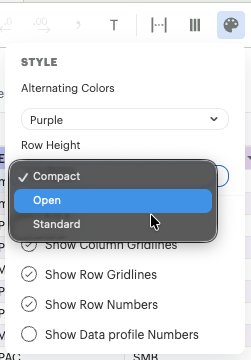
Cell Style Settings: This modal allows for:
- Alternating Row Colors: Improves readability for wide financial models.
- Gridline Toggles: Switch between full grid, horizontal only, or clean white space.
-
Text Wrapping: Wrap Text toggle to ensure long memo fields don't break the grid's visual flow.
-
Column Sizing
- Size to Fit: Automatically calculates the optimal width based on the longest string in the current view.
- Manual Resize: Drag-based width adjustment. Hover over the boundary of a column header and drag to your desired pixel width.
G. Column Management and Schema Control
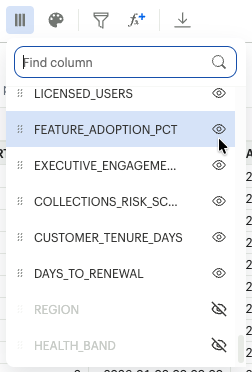
The Select Columns modal is your primary tool for shaping the dataset output.
- Hide/Unhide: Mass-toggle the visibility of columns. Hide technical system IDs to focus the grid on business metrics.
- Reorder via Drag-and-Drop: Grab the handle next to any column name in the list and drag it to change its position in the grid.
Filtering by Data Type
Filtering in Spreadsheet is a logic-driven engine that changes its behavior based on the column's data type.
A. Numerical Filtering (The Financial Filter)
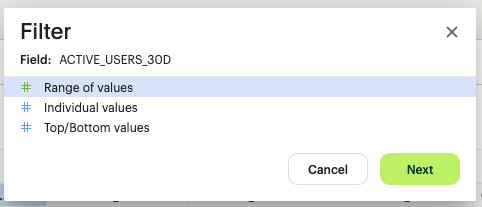
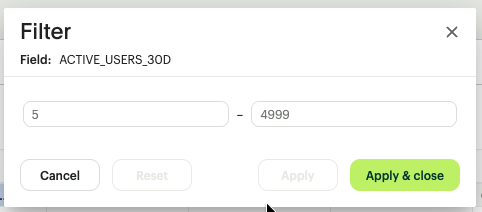
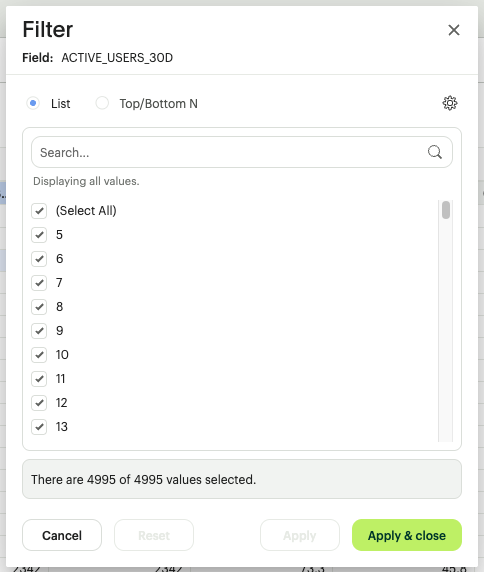
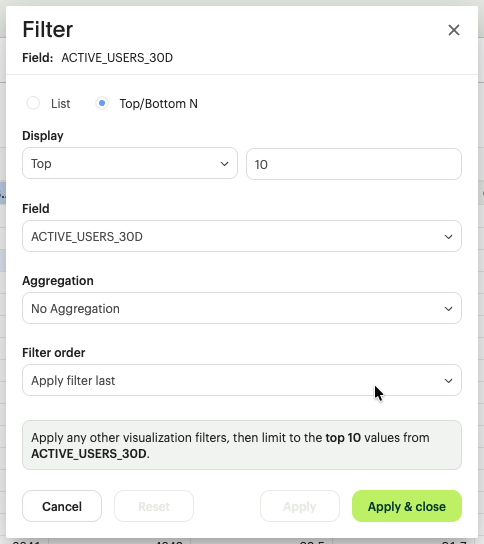
When filtering numbers, the system offers three specific logic gates:
- Range of Values: Set a "Between," "Greater than," or "Less than" boundary. (e.g., Show only transactions over $50,000).
- Individual Values: A checklist of every unique number found in the scan, allowing for surgical exclusion of specific amounts.
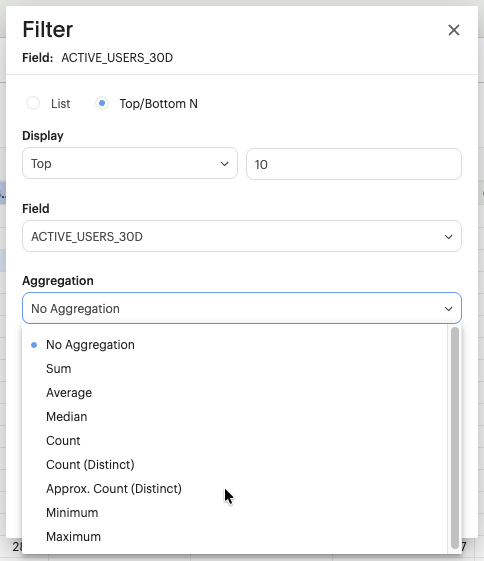
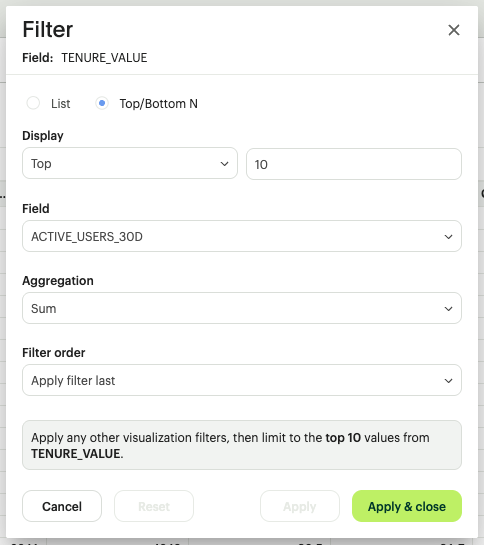
- Top/Bottom Analysis: Apply a "Top N" or "Bottom N" filter (e.g., Show our top 10 cost centers by spend).
B.String & Boolean Filtering (The Categorical Filter)
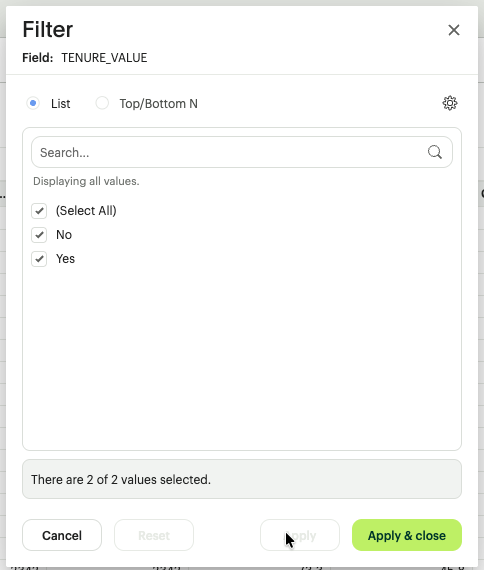
- Multi-Select Checklist: Search and toggle specific categories (e.g., Filter to only 'EMEA' and 'APAC' regions).
- Search-to-Filter: A dedicated search bar within the filter modal to quickly isolate specific strings in datasets with thousands of unique values.
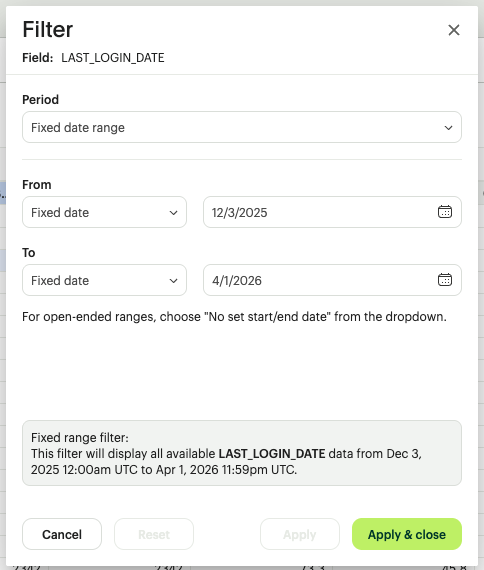
C. Date & Time Filtering (The Chronological Filter)
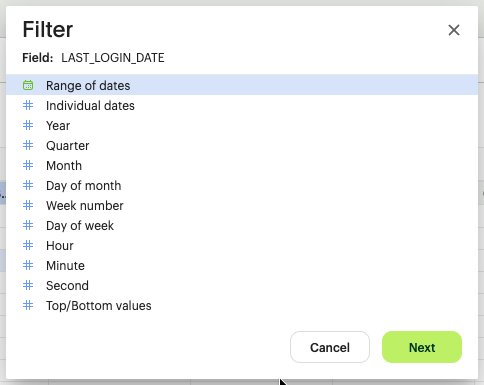
- Relative Date Ranges: Select "Last 7 Days," "Quarter to Date," or "Last Year."
- Custom Date Picker: Define a specific start and end date for audit-specific lookback windows.
Spreadsheet Calculated Fields
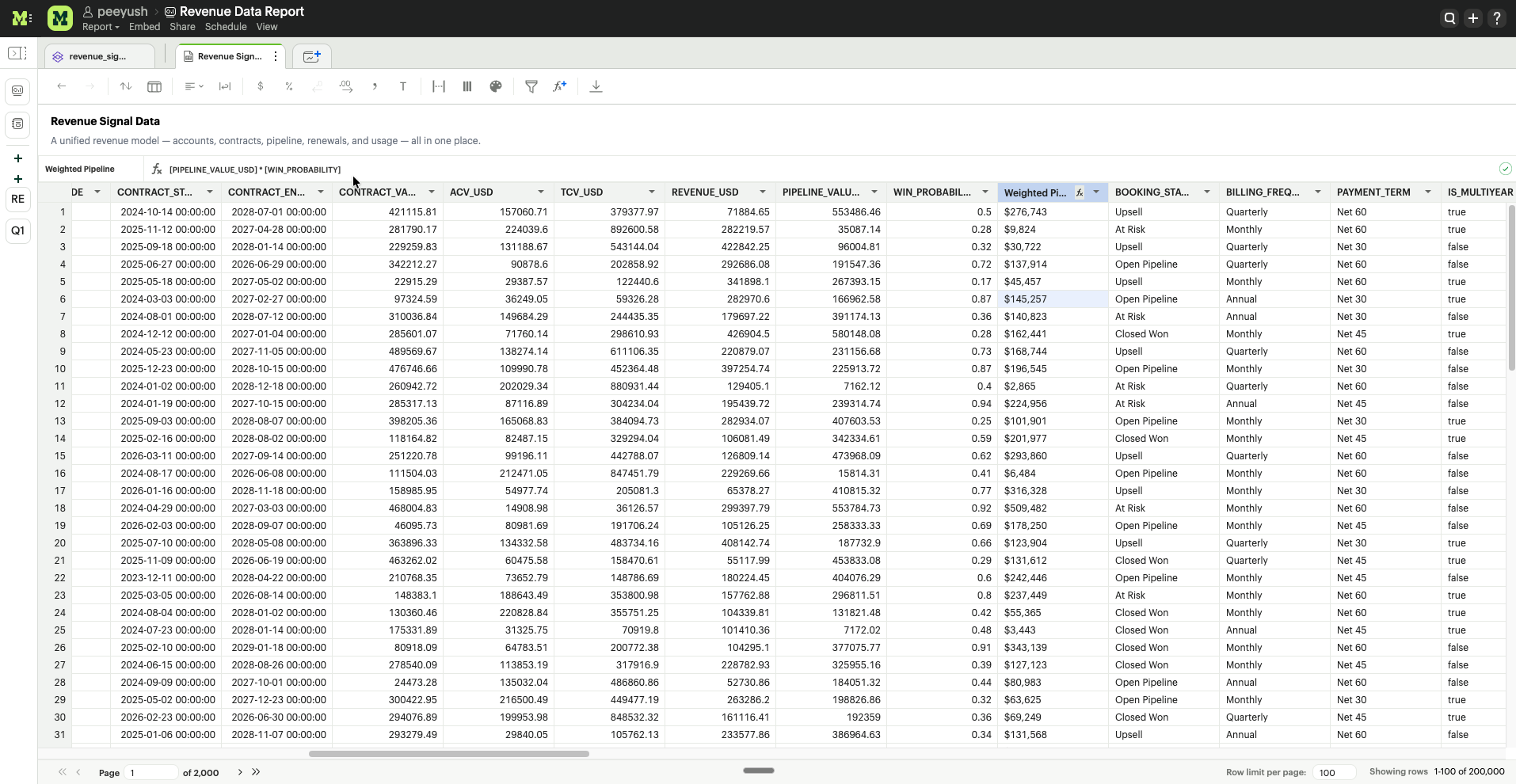
Calculated fields enable users to create derived columns in Spreadsheet by applying expressions to existing dataset columns.
Using spreadsheet calculated fields, users can:
- Derive new metrics from existing columns
- Apply business logic and classification rules
- Perform mathematical and statistical calculations
- Transform and standardize data values
- Handle missing data safely
- Prepare datasets for downstream analytics and AI workflows
Calculated field Structure
Spreadsheet calculated fields are composed of four elements.
| Element | Description |
|---|---|
| Column references | Existing dataset fields used as inputs |
| Operators | Mathematical or logical operations |
| Functions | Predefined operations applied to values |
| Literal values | Constants such as numbers, strings, or dates |
Column Reference Syntax
All dataset columns must be referenced using square brackets.
[COLUMN_NAME]
Examples:
[Revenue]
[Customer Name]
[Order Date]
Columns with spaces are supported because the bracket syntax preserves the full column name.
Example:
[Gross Revenue]
Operators
Operators perform arithmetic calculations and logical comparisons.
Arithmetic Operators
| Symbol | Name | Description | Example |
|---|---|---|---|
| + | Addition | Adds numeric values | [Revenue] + [Tax] |
| - | Substraction | Subtracts values | [Revenue] - [Cost] |
| * | Multiplication | Multiplies values | [Price] * [Quantity] |
| / | Division | Divides values | [Revenue]/[Orders] |
| % | Modulus | Returns remainder | MOD([Revenue], 100) |
Comparison Operators
| Symbol | Name | Description | Example |
|---|---|---|---|
| = | Equal | True if values match | [Region] = 'West' |
| != | Not Equal | True if values differ | [Region] != 'West' |
| > | Greater Than | True if left value is larger | [Revenue] > 10000 |
| < | Less Than | True if left value is smaller | [Revenue] < 10000 |
| >= | Greator or Equal | True if left value is larger or equal | [Revenue] >= 10000 |
| <= | Less or Equal | True if left value is smaller or equal | [Revenue] <= 10000 |
Logical Operators
| Symbol | Description | Example |
|---|---|---|
| AND | Returns true if both conditions are true | [Revenue] > 10000 AND [Region] = 'West' |
| OR | Returns true if either conditions is true | [Revenue] > 10000 OR [Orders] > 50 |
| NOT | Negates a condition | NOT ([Region] = 'West') |
| IN | Tests if value exists in list | [Region] IN {'West','East'} |
| NOT IN | Tests if value does not exist in list | [Region] NOT IN {'West','East'} |
Conditional Logic
Conditional calculated fields allow users to encode decision rules directly within the dataset.
Syntax
IF condition THEN result ELSE result END
Example
IF [Revenue] > 50000
THEN 'High Value'
ELSE 'Standard'
END
Example use cases:
- Revenue banding
- Risk classification
- Operational flags
- Customer segmentation
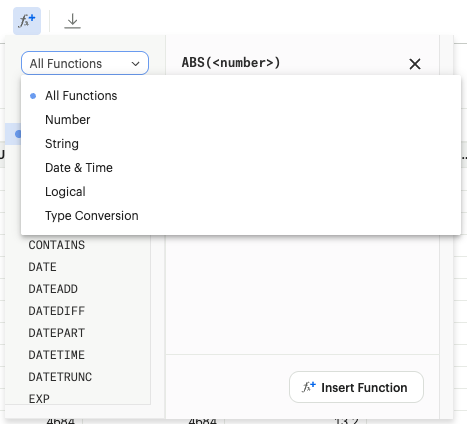
Functions
Numeric Functions
Numeric functions perform mathematical calculations.
| Function | Description | Example |
|---|---|---|
| ABS | Returns absolute value | ABS([Profit]) |
| ROUND | Rounds numeric value | ROUND([Revenue],2) |
| CEIL | Rounds value upward | CEIL([Price]) |
| FLOOR | Rounds value downward | FLOOR([Price]) |
| POWER | Raises number to power | POWER([Value],2) |
| SQRT | Square root | SQRT([Area]) |
| MOD | Returns remainder | MOD([Revenue],100) |
| EXP | Exponential values | EXP([Score]) |
| LOG | Natural logarithm | LOG([Revenue]) |
Date Functions
Date funtions operate on date or timestamp fields.
| Function | Description | Example |
|---|---|---|
| DATEDIFF | Calculates difference between dates | DATEDIFF('day',[Order Date],[Ship Date]) |
| DATEADD | Adds interval to date | DATEADD('day',7,[Order Date]) |
| YEAR | Extracts year from date | YEAR([Order Date]) |
| MONTH | Extracts month from date | MONTH([Order Date]) |
| DAY | Extracts day from date | DAY([Order Date]) |
| WEEK | Extracts week number | WEEK([Order Date]) |
| QUARTER | Extracts quarter | QUARTER([Order Date]) |
| NOW | Returns current timestamp | NOW() |
String Functions
String functions manipulate text values.
| Function | Description | Example |
|---|---|---|
| CONCAT | Concatenates strings | CONCAT([First Name],' ',[Last Name]) |
| LOWER | Converts text to lowercase | LOWER([City]) |
| UPPER | Converts text to uppercase | UPPER([City]) |
| LENGTH | Returns string length | LENGTH([Customer Name]) |
| TRIM | Removes whitespace | TRIM([Customer Name]) |
| LEFT | Returns left substring | LEFT([Customer Name],3) |
| RIGHT | Returns right substring | RIGHT([Customer Name],2) |
| SUBSTRING | Extracts portion of string | SUBSTRING([Customer Name],1,4) |
| REPLACE | Replaces substring | REPLACE([City],'NY','New York') |
Null Handling Functions
These functions handle missing or null values
| Function | Description | Example |
|---|---|---|
| ZN | Replaces null with zero | ZN([Revenue]) |
| IFNULL | Returns fallback value | IFNULL([Revenue],0) |
| ISNULL | Tests if value is null | ISNULL([Phone]) |
| COALESCE | Returns first non-null value | COALESCE([Phone],[Backup Phone]) |
Aggregate Functions
Aggregate functions calculate values across rows.
| Function | Description | Example |
|---|---|---|
| SUM | Returns sum of values | SUM([Revenue]) |
| AVG | Returns average value | AVG([Revenue]) |
| MIN | Returns smallest value | MIN([Revenue]) |
| MAX | Returns largest value | MAX([Revenue]) |
| COUNT | Counts rows | COUNT([Order ID]) |
| COUNT_DISTINCT | Counts distinct values | COUNT_DISTINCT([Customer ID]) |
Cumulative Functions
Cumulative functions calculate progressive metrics across ordered data.
| Function | Description | Example |
|---|---|---|
| CUMULATIVE_SUM | Running sum | CUMULATIVE_SUM([Revenue],[Order Date]) |
| CUMULATIVE_AVERAGE | Running average | CUMULATIVE_AVERAGE([Revenue],[Order Date]) |
| CUMULATIVE_MAX | Running maximum | CUMULATIVE_MAX([Revenue],[Region]) |
| CUMULATIVE_MIN | Running minimum | CUMULATIVE_MIN([Revenue],[Region]) |
Analytical Calculated field Examples
Revenue Margin
[Revenue] - [Cost]
Profit Percentage
([Revenue] - [Cost])/[Revenue]
Customer Value Classification
IF [Revenue] > 50000
THEN 'High Value'
ELSE 'Standard'
END
Delivery Delay
DATEDIFF('day',[Expected Delivery],[Actual Delivery])
Cost Center Priority
IF [Spend] > 10000
THEN 'Priority Action'
ELSE 'Normal'
END
Analytical Modeling Workflow
Spreadsheet supports a layered modeling workflow.
Raw Dataset
↓
Derived Metrics
↓
Feature Engineering
↓
Business Rules
↓
Analytics & AI Queries
Derived columns progressively transform raw data into actionable insights.
Best Practices
Use descriptive column names
Good examples:
revenue_margin
customer_segment
priority_action
Avoid generic names:
calc1
score2
value3
Build calculated fields incrementally
Start with base metrics and build additional derived columns step by step.
Handle null values safely
Wrap columns using null-handling functions when necessary.
Example:
ZN([Revenue])
Keep business logic readable
Decision rules should be understandable by both analysts and business stakeholders.
Example:
IF [Spend] > 10000
THEN 'High Priority'
ELSE 'Standard'
END
Summary
Spreadsheet calculated fields enable analysts to extend datasets with derived analytical columns.
Using calculated fields, users can:
- transform raw data
- compute business metrics
- implement operational rules
- prepare AI-ready datasets
- build analytical models directly inside Mode
This approach combines spreadsheet-style flexibility with warehouse-scale data processing, allowing users to perform complex transformations without exporting data outside the governed analytics platform.
Was this article helpful?